

Autopilot makes the first-boot experience for a new Windows device almost magical — until Windows Update kicks in. Then the device sits on the Enrollment Status Page for fifteen, twenty, sometimes forty minutes with no real signal to the user about what is happening. Behind the scenes, PSWindowsUpdate is doing its job under SYSTEM context, but the user sees nothing. Reboots arrive without warning. I wanted to fix that — and ended up writing a Win32 app that gives the user a real progress window during the update install.
The problem
Autopilot’s ESP handles app and policy delivery well. What it does not handle well is the Windows Update phase that often sits inside it — especially when the device is fetching cumulative updates that are several gigabytes and require a reboot mid-flow.
From the user’s perspective:
- The ESP shows “Preparing your device” with no real-time signal
- Updates run silently in the background under SYSTEM context
- Reboots happen abruptly when an update completes
- If something fails, the user has no idea — the ESP eventually times out or silently moves on
From the IT side:
- No structured logging beyond the Intune Management Extension log
- No detection rule that says “did the update run, did it succeed”
- No way to differentiate “no updates needed” from “ten updates installed and a reboot pending”
- Hard to prove patch state at end of enrollment
- Often the device is not 100 % up to date when the user starts using the device
The architecture constraint
Anything that wants to install Windows updates during enrollment must run as SYSTEM. PSWindowsUpdate, the Windows Update Agent, all of it, SYSTEM context only. But anything that wants to show a window to the user must run in the user’s session. These are two different security contexts on Windows, and they do not natively share a desktop.
The ServiceUI trick
ServiceUI.exe from the Microsoft Deployment Toolkit is the bridge. It runs as SYSTEM, finds the active explorer.exe in the user’s session, and projects a child process into that session’s desktop. The Win32 install command becomes:
ServiceUI.exe -process:explorer.exe %WINDIR%\System32\WindowsPowerShell\v1.0\powershell.exe -ExecutionPolicy Bypass -NonInteractive -WindowStyle Hidden -File Invoke-AutopilotWindowsUpdate.ps1 -NoRebootPowerShell starts under SYSTEM (because Intune install behavior is System), but the WPF window the script creates appears on the user’s desktop. The user sees real-time status. PSWindowsUpdate has the elevation it needs.
This only works during User ESP — User ESP runs after the user has logged in, so there is an explorer.exe to project into. Tagging the Win32 app to a user group, or tagging it to a device group while ensuring it lands during User ESP, is part of getting this right.
Locking the window
Once the window is up, the user must not be allowed to close it. Dismissing it mid-flow leaves the device in an inconsistent state and confuses the detection rule. WPF does not give you a “this window cannot be closed” property, so I dropped to Win32 via P/Invoke and removed SC_CLOSE from the system menu:
Add-Type @' using System; using System.Runtime.InteropServices; public class Win32Window { [DllImport("user32.dll")] public static extern IntPtr GetSystemMenu(IntPtr hWnd, bool bRevert); [DllImport("user32.dll")] public static extern bool RemoveMenu(IntPtr hMenu, uint uPosition, uint uFlags); public const uint MF_BYCOMMAND = 0x00000000; public const uint SC_CLOSE = 0xF060; }'@I also intercept the WPF Closing event and cancel it until a synchronized state flag is set by the script when the work is done. The combination is robust — neither the close button nor Alt-F4 will dismiss the window until the script decides it is safe.
Two threads, one window
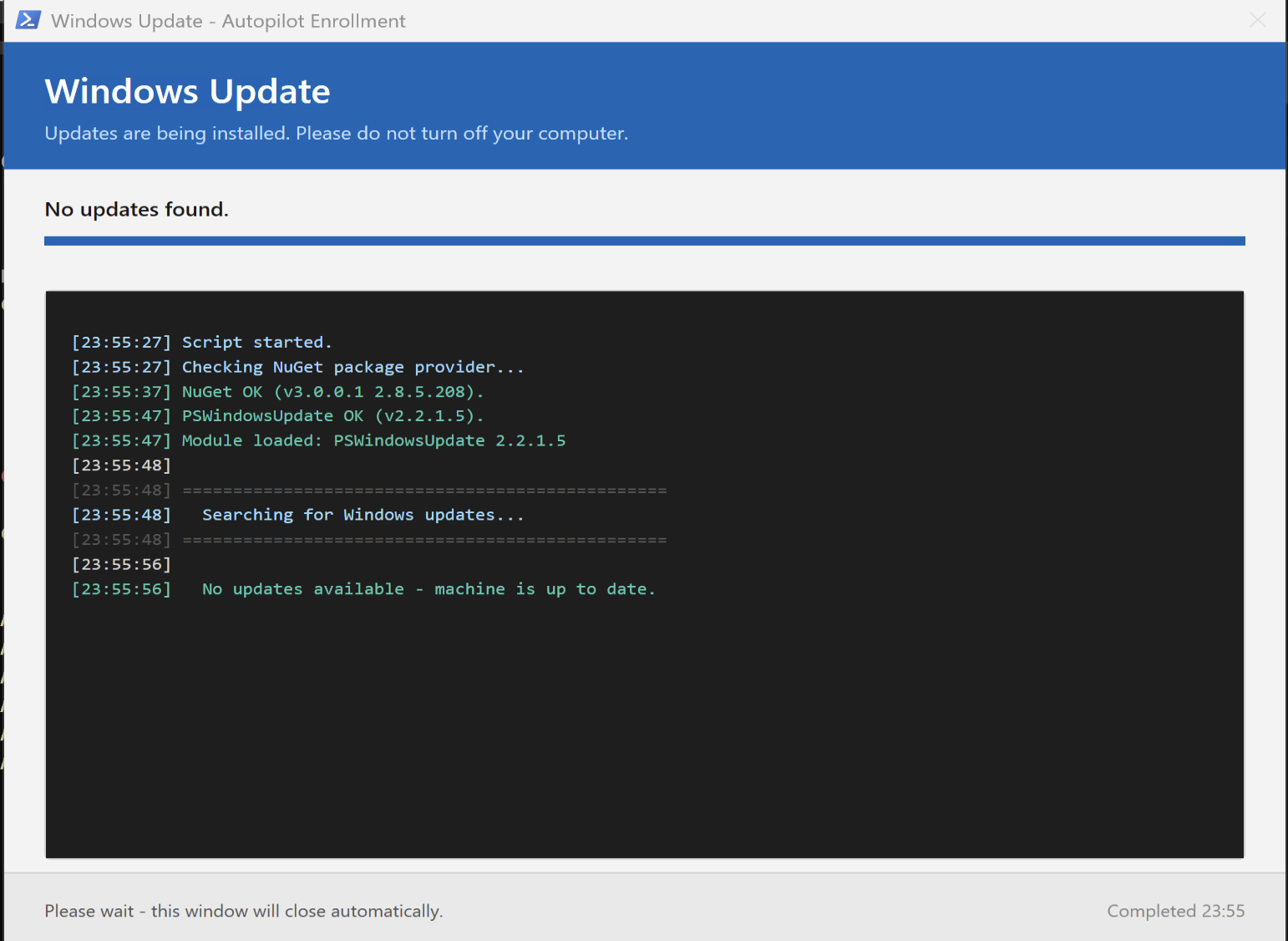
The window is WPF. The work — module install, update search, install loop — is heavy and would freeze the UI if run on the same thread. The script uses a separate runspace for the work, and the runspace marshals UI updates back to the main thread via Dispatcher.Invoke. Each helper (Set-Status, Write-Log, Set-ProgressDeterminate) wraps a dispatcher call.
It is more code than a quick script, but it is the difference between a janky frozen window and a real one.
Reboot countdown
When updates need a reboot and -NoReboot is not set, the footer of the window switches into a 15-minute countdown panel with three buttons: Pause, Restart now, Shutdown. A DispatcherTimer ticks every second. Pause toggles a flag the timer respects. The user has agency, but the default action happens automatically if no one acts.
For Autopilot ESP I usually run with -NoReboot and let Intune handle restart timing. The countdown is more useful when this same script runs as part of a non-Autopilot build process.
Detection and return codes
Intune Win32 apps need a detection rule. The script writes a registry key on completion:
HKLM:\SOFTWARE\AutopilotWindowsUpdate Status = "Completed" | "Failed" Timestamp = ISO 8601 Detail = "NoUpdatesNeeded" | "3Updates/RebootRequired" | ...A custom detection script reads Status and exits 0 if it equals Completed. The uninstall command removes the key, allowing reinstall on the next deployment.
Return codes are mapped properly so Intune knows what happened: 0 for success, 3010 for soft reboot, 1641 for hard reboot, 1618 for retry. This matters both for the Win32 app’s reported state and for downstream ESP behavior.
Get it
Source, README with packaging instructions, and the Win32 install/uninstall/detection scripts moved to GitHub: maskovli/msft-secops — AutopilotWindowsUpdate-pkg
ServiceUI.exe is not included in the repository — it is licensed Microsoft software you need to extract from MDT yourself. The README walks through that step.
Pull requests welcome. If you hit an edge case in your tenant — odd Win32 packaging behavior, ESP timing issues, regional Windows Update sources, open an issue. How to do the setup in Intune wil come in an future post.